Introduction
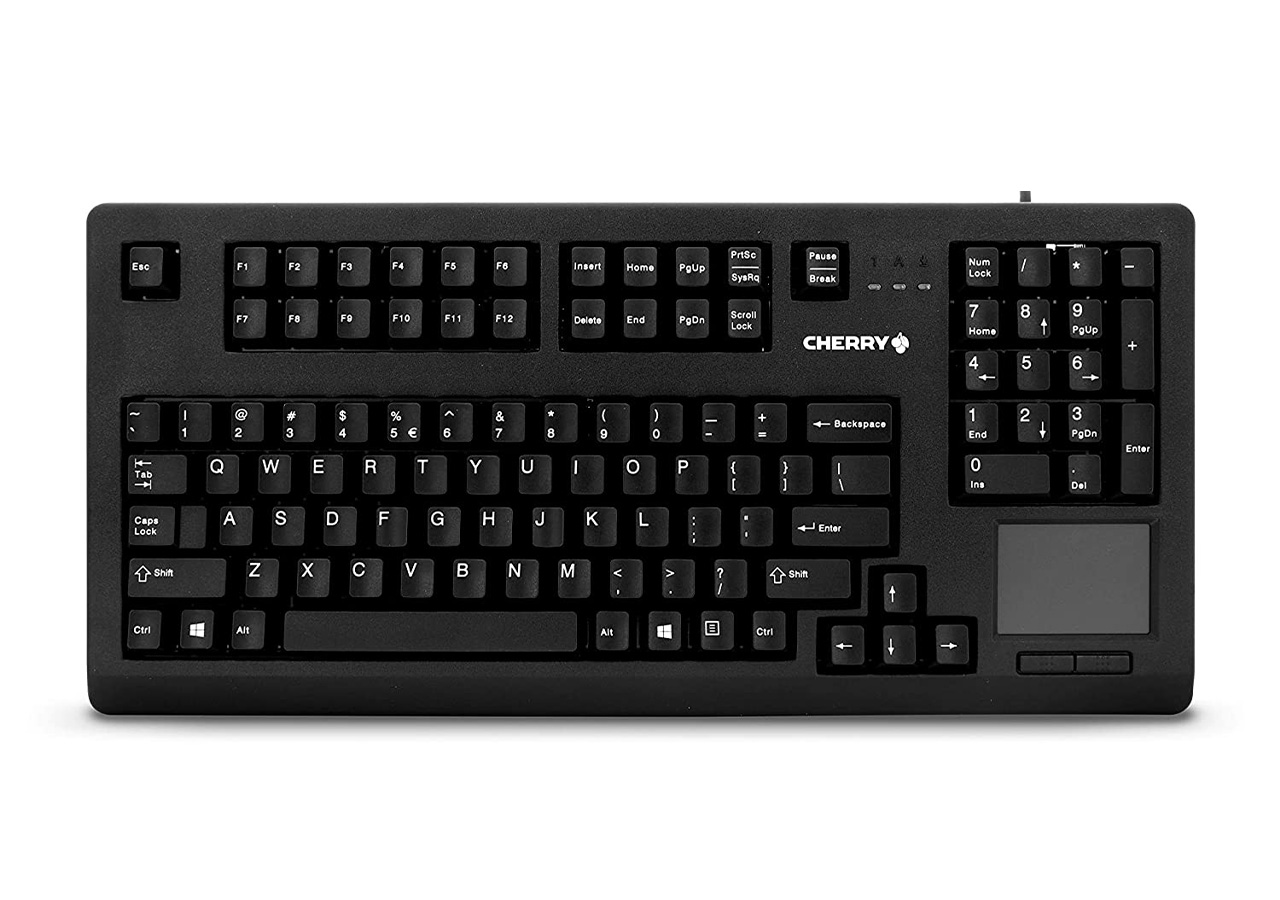
There are several benefits to using a keyboard with a built-in touchpad or trackball. Here are a few of the most notable advantages:
- Saves Space: Keyboards with built-in touchpads or trackballs are a great way to save desk space. By eliminating the need for a separate mouse, you can free up valuable space on your desk.
- Convenience: Having a touchpad or trackball built into your keyboard is incredibly convenient. You can easily control your cursor without having to reach for a separate device, making it easier to navigate your computer.
- Portability: Many keyboards with built-in touchpads or trackballs are designed to be compact and lightweight, making them easy to transport. This is great for people who work on-the-go or need to bring their keyboard with them to different locations.
- Ergonomics: Using a keyboard with a touchpad or trackball can be more ergonomic than using a separate mouse. By keeping your hands in a more neutral position, you can reduce strain and prevent repetitive stress injuries.
How to Use a Keyboard with a Touchpad or Trackball
If you're new to using a keyboard with a touchpad or trackball, it may take some time to get used to the new setup. Here are some tips to help you get started:
- Get Comfortable: Make sure your keyboard is positioned at a comfortable height and angle. Adjust your chair and desk as needed to reduce strain on your neck and shoulders.
- Practice, Practice, Practice: It may take some time to get used to controlling your cursor with a touchpad or trackball. Take some time to practice navigating your computer with your new setup.
- Customize Your Settings: Most operating systems allow you to customize the settings for your touchpad or trackball. Take some time to adjust the sensitivity and speed of your device to suit your preferences.
- Use Keyboard Shortcuts: Keyboard shortcuts can help you work more efficiently and reduce the need to use your touchpad or trackball. Take some time to learn common shortcuts for your operating system and programs.
Troubleshooting Keyboard with Touchpad or Trackball Issues
Like any technology, keyboards with touchpads or trackballs can experience issues from time to time. Here are some common problems you may encounter and how to troubleshoot them:
- Touchpad or Trackball Not Responding: If your touchpad or trackball isn't responding, make sure it's turned on and that the cable is properly connected to your computer. You may also need to update your drivers or adjust your settings.
- Cursor Moves Erratically: If your cursor is moving erratically, try adjusting the sensitivity of your touchpad or trackball. You may also need to clean the device to remove any dirt or debris that could be interfering with its operation.
- Keyboard Keys Not Responding: If your keyboard keys aren't responding, make sure the cable is properly connected to your computer. You may also need to replace the batteries in a wireless keyboard or check for driver updates.
- Keyboard Keys Sticking: If your keyboard keys are sticking, you may need to clean your keyboard to remove any dirt or debris that could be interfering with its operation. If the problem persists, you may need to replace the keyboard.